Instructions for vivo devices
WARNING: Your run tracking will not work properly if these settings are not configured correctly. Please follow the instructions carefully.
Follow these setup steps for your Vivo device:
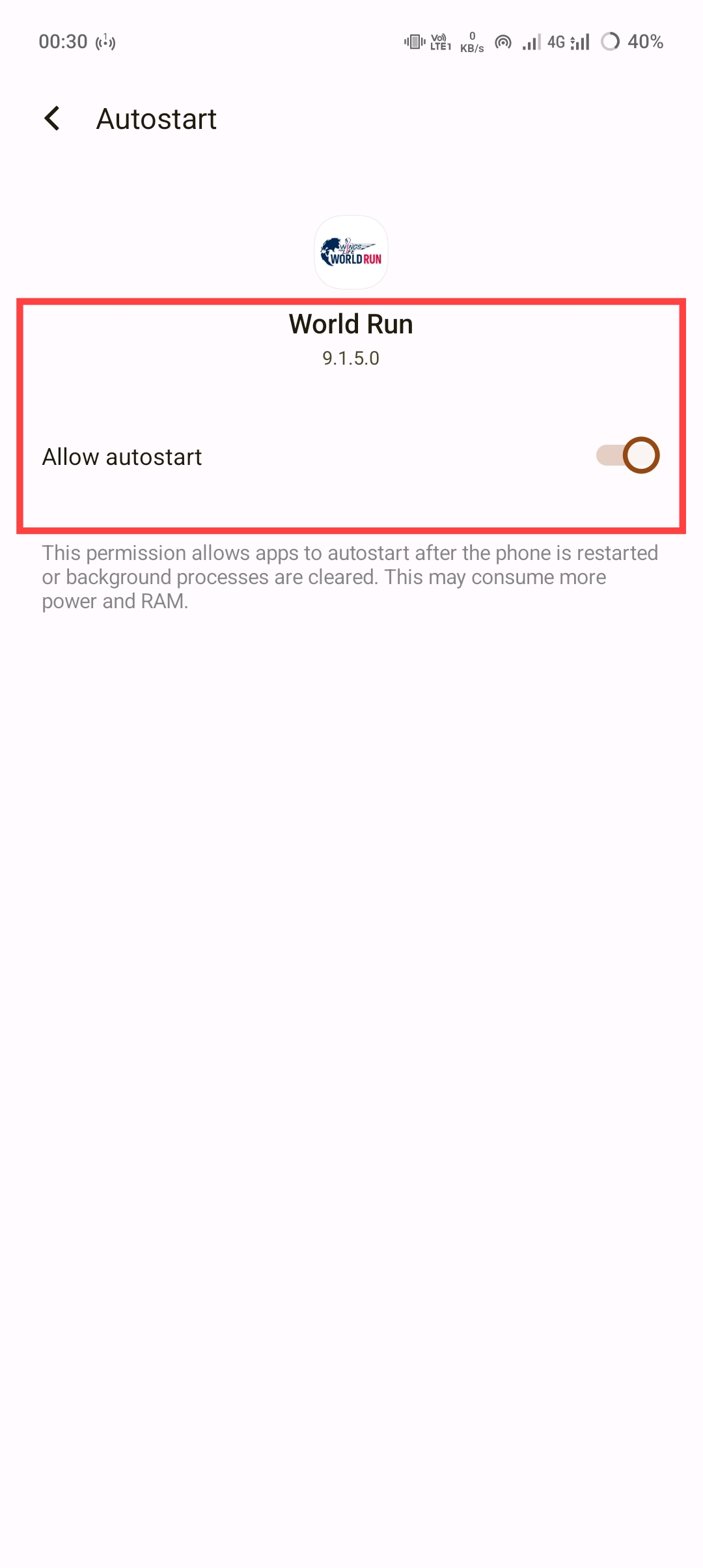
Autostart Settings
Enable automatic start permissions to ensure the app can trigger the race start correctly:
For Funtouch OS 14 & 15:
- Go to Settings > Apps > Special app access > Autostart.
- Find World Run and toggle the switch to ON.
- Note: If prompted, allow both “Primary” and “Secondary” autostart.
App Locking
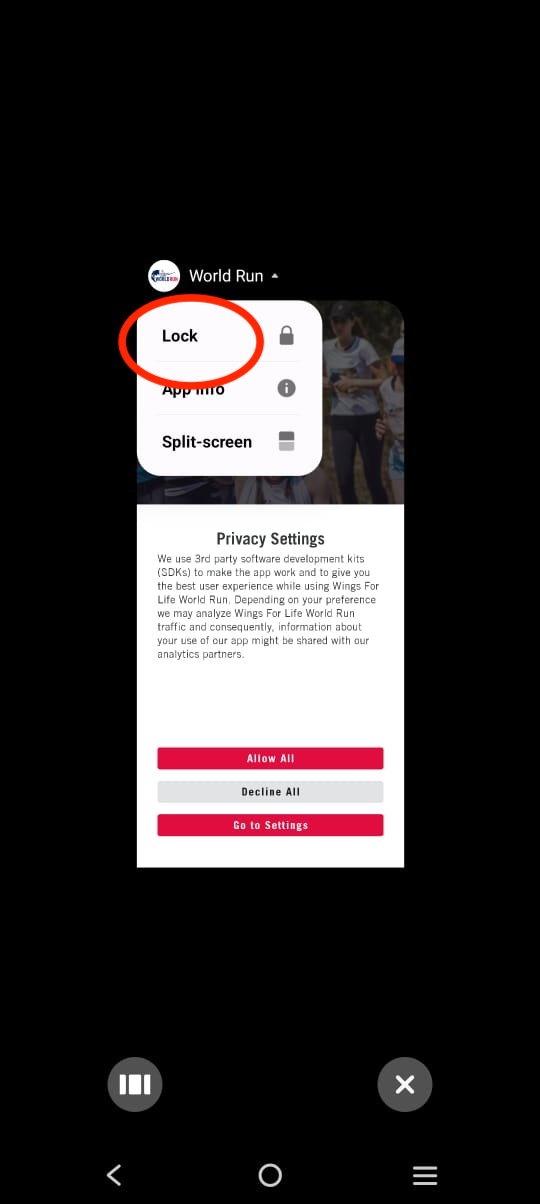
Lock the app in the background to prevent the system from terminating it during your run:
Using the Recent Apps view:
- Open the World Run app.
- Swipe up from the bottom of the screen (or tap the Square icon) to open Recent Apps.
- Tap the World Run icon at the top of the app preview or long-press the preview.
- Select Lock from the menu. A small padlock icon will appear next to the app name.
BATTERY & POWER SETTINGS
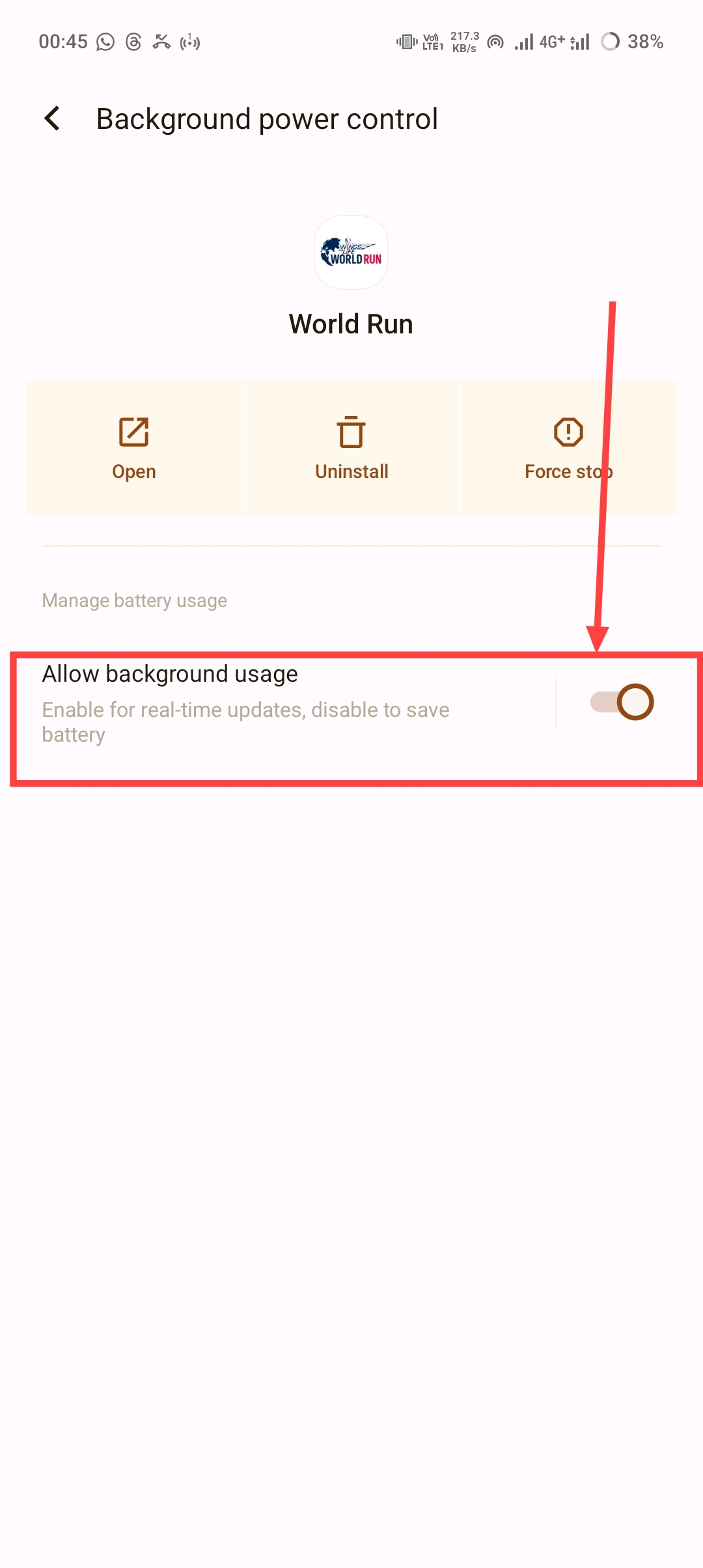
Vivo’s “Smart Control” is very effective. You must manually allow high background power usage:
High Background Power Consumption:
- Go to Settings > Battery > Background power consumption management.
- Find World Run in the list.
- Select Don’t restrict background power usage (or “Allow background usage”).
Battery Optimization:
- Go to Settings > Apps > World Run > Battery.
- Ensure it is set to Unrestricted.
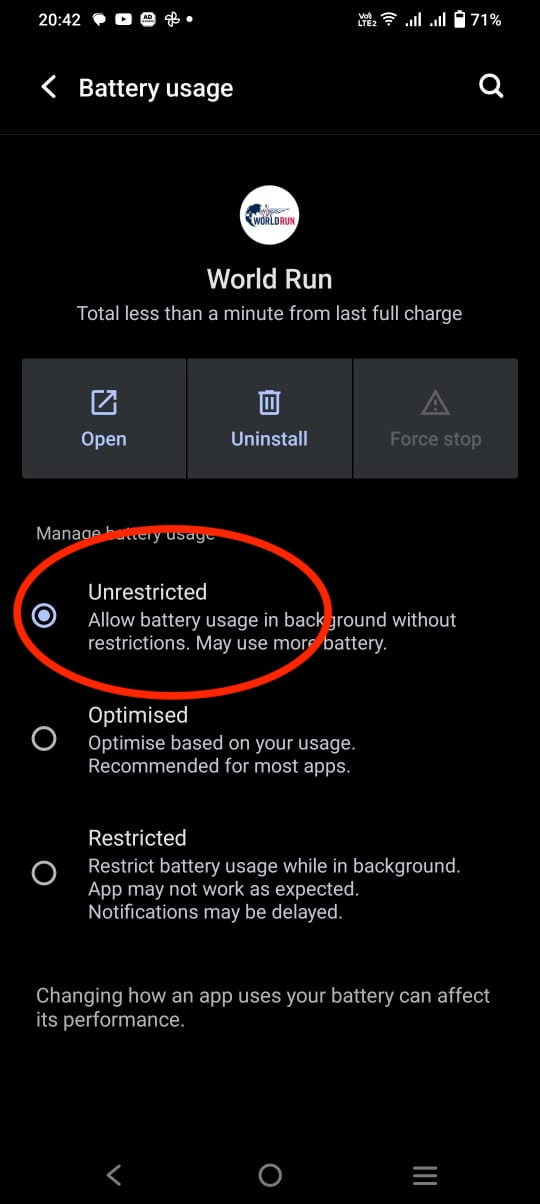
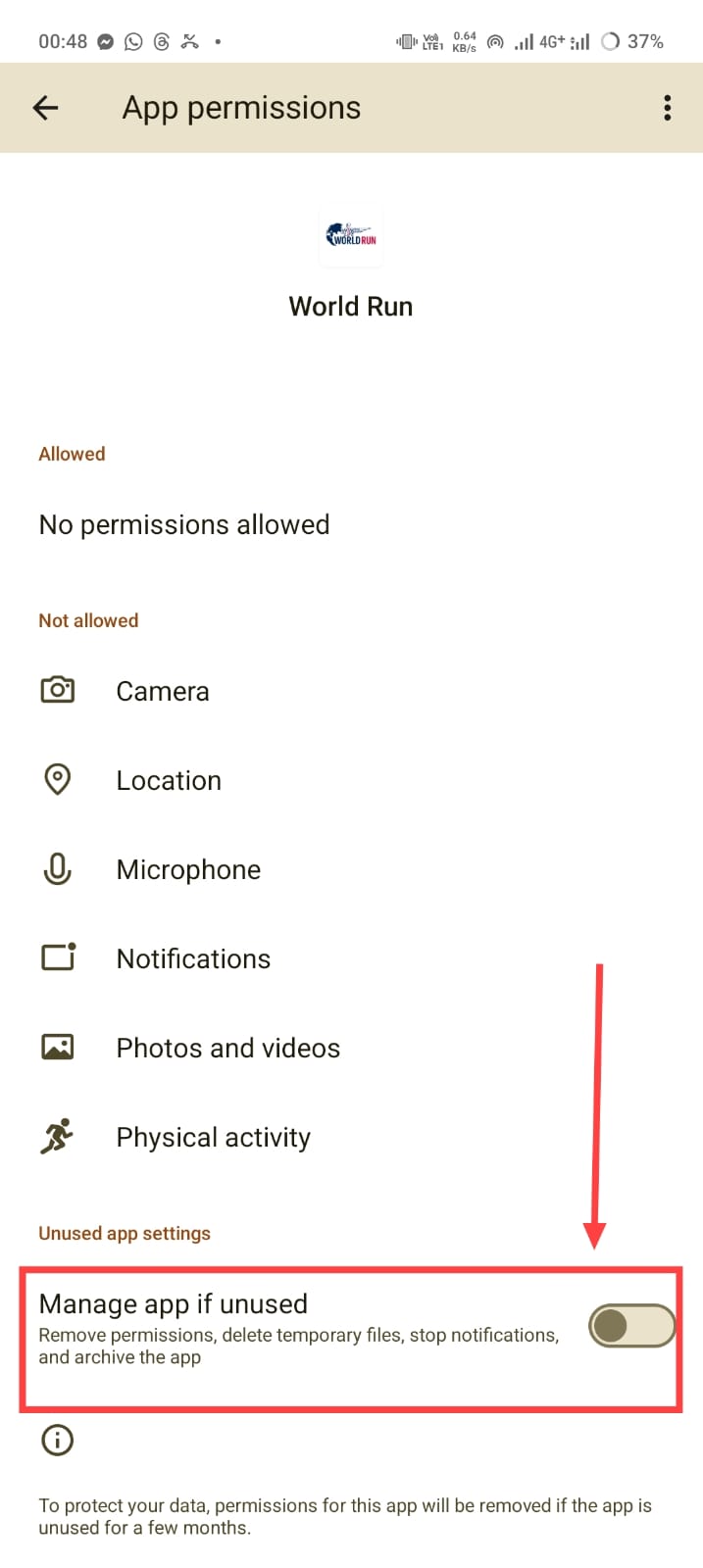
Disable “App Hibernation”:
- In the App Info page for World Run, ensure the toggle “Remove permissions and free up space” (or “Manage app if unused”) is turned OFF.